Office 2016/2019 end of support

Hard to believe that even Microsoft Office 2019 (the last full edition of Office-standalone) is reaching end-of-support! Microsoft Technet Community has all the information you need on this and how it (can) effect you and your business. Support for Office 2016 and Office 2019 will end on October 14, 2025

Office 2016 and 2019 products reaching end of support on October 14, 2025
Office suitesOffice 2016Office 2019
Office applicationsAccess 2016Access 2019Excel 2016Excel 2019OneNote 2016Outlook 2016Outlook 2019PowerPoint 2016PowerPoint 2019Project 2016Project 2019Publisher 2016Publisher 2019Skype for Business 2016Skype for Business 2019Visio 2016Visio 2019Word 2016Word 2019
Productivity serversExchange Server 2016Exchange Server 2019Skype for Business Server 2015Skype for Business Server 2019

Recommended path: Migrate to the cloud with Microsoft 365 E3

Our recommendation for customers seeking a comprehensive, AI-ready solution is to transition to the cloud with Microsoft 365 E3. Microsoft 365 E3 provides an end-to-end solution for securely harnessing the power of AI in your organization, including:

  • Always up-to-date versions of familiar apps like Word, Excel, PowerPoint and Outlook to install on up to 5 PCs + 5 tablets + 5 phones per user
  • Intelligent services like Exchange Online, SharePoint Online, OneDrive, and Microsoft Loop to help keep employees connected and in sync
  • Core security and information protection capabilities to help you safeguard your organization’s devices, applications, and sensitive data against threats
  • Streamlined endpoint management to enable faster deployment and help your workforce stay secure and productive across devices
  • Integrate generative AI seamlessly into core productivity workflows within Microsoft 365 Apps using Microsoft 365 Copilot (available as an add-on [1])

We know there is no “one-size-fits-all” approach for managing end of support – and we encourage you to explore our enterprise and small business offerings to find the right fit for your organization. As you do, keep in mind that only cloud suites (Microsoft 365 and Office 365) are eligible to be used with Microsoft 365 Copilot; on-premises versions of Office do not qualify.

AADConnect’s new Features -Auto Upgrade

A colleague of mine posted a great article on the new features of Azure Active Directory Connect (AADConnect) that raises some caution flags -things to be aware of when installing this new version.  Please take a moment to review the items Mr. Crowley addresses as they may be helpful on your next AADConnect deployment… Continue reading

SHA-2 Certificates in AD FS 3.0

So I’ve come across this a couple of times and I’m sure it will begin to be more visible in the near future.  A big shout-out to  who posted this information -THANK YOU!

AD FS on Windows Server 2012 R2 (often referred to as “AD FS 3.0”) no longer has a dependency on IIS. One of the common methods used to generate a “Certificate Signing Request” (CSR) is to use IIS on the server you need the certificate on or by using another IIS server in the organization. Without access to IIS, your options for generating the CSR are to use the MMC snap-in, one of the native command line utilities or some third-party tools.

Continue reading

Office 365 Planner

Microsoft is soon to be releasing Office 365 Planner and I have to say, I’m pretty excited about this!  For me and the work I do, this product is something I think I would live by. Working on so many different projects (each having their own set of teams, tasks, goals etc…), this would help me stay on course and on top of everything going on.  Currently, I use Outlook and OneNote to personally track all of this -occasionally MS Project, but it does get tedious and there are so many areas that are left in the gray spot.

If you are using Office 365 (for business, as I don’t believe Home or School will include this) -Please watch this video!

For more information on Office 365 Planner

https://www.youtube.com/watch?v=X9RZo_40q2k

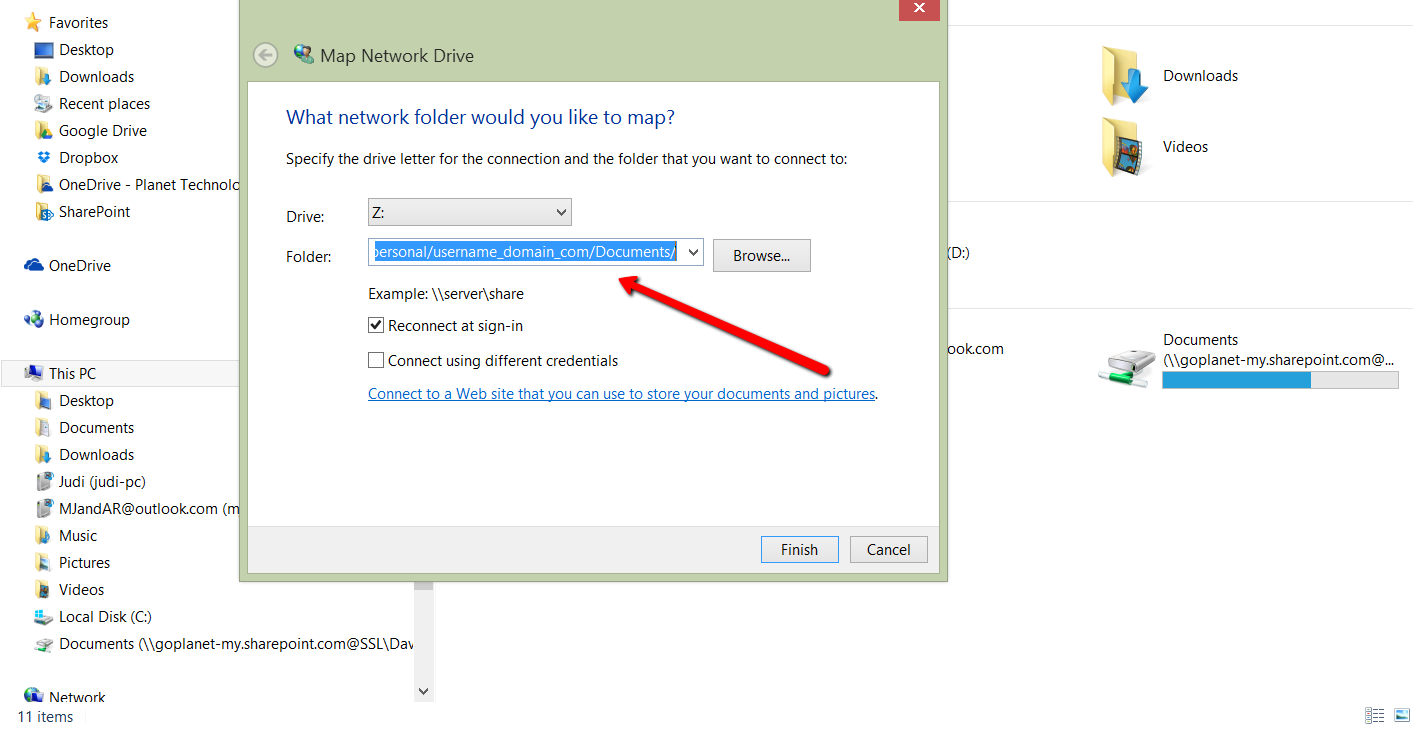
Map Network Drive to your OneDrive for Business account

There seems to be an increasing need for drive mapping to OneDrive for Business (ODFB). Though the newer versions of Windows (v8, v8.1, v10) will automatically synchronize a OneDrive ‘folder’, Drive mapping in corporate environments still seems to be the preferred way.

The ‘trick’ to doing this is to simply put the correct URL into the drive map location;

Log Into Portal

  • Click on OneDrive and copy the URL from the browser’s URL bar
  • Back in Windows, go file explorer, click on Computer and select Map Network Drive

MapNetworkDrive

MapNetworkDriveURL

  • That’s IT -now you have a network drive map to your OneDrive for Business!

Office 365 Migrations (Links)

These are a few links I’ve used in working with migrating to Office 365:

  1. Migrate all mailboxes to Exchange Online with a cutover migration
  2. Migrate Legacy Public Folders to Exchange Online Exchange 2013 Help
  3. Office 365 Identity Management with DirSync without Exchange Server On-Premises
  4. Troubleshoot a hybrid deployment Exchange 2013 Help
  5. MessageOps – Exchange of O365 Welcome
  6. Mailboxes 25 MB

PowerShell for Office 365

Got an awesome share today (in Yammer)

Welcome!

Are you an Office 365 IT administrator who is new to PowerShell? Are you looking for an Office 365 admin tool to automate repetitive administrative tasks? Or perhaps you are looking to access additional capabilities that aren’t available in the Office 365 Admin Center? Then PowerShell for Office 365 is for you

Continue Reading…

Office 365 “Backout Plan”

A co-worker shared a blog with me in dealing with back-out plans for Office 365 deployments.  It was very informative and gave good/sound advise.  Though I’m a firm believer and supporter of Microsoft’s Office 365 infrastructure and dependability, I’m also a ‘seasoned’ IT Engineer who knows that the putting all your eggs in one basket approach could have consequences.

If this thought has crossed your mind or if you’re just curious, I encourage you to read the article posted on Apr 7, 2015 by in Tony Redmond’s Exchange Unwashed Blog

(excerpt)

What’s your back-out plan if an Office 365 deployment is unsuccessful?

The history of IT contains many failed projects. All manner of excuses and explanations are offered as to why failure came about. Poor technology, poor planning, bad execution, bugs, or just bad luck. For whatever reasons, we know that every IT project has some potential for failure. The question is what to do if failure should occur – or what’s your back-out plan? Few experienced CIOs would plunge into a major project without knowing what their Plan B is – so what is it if an Office 365 deployment goes bad?

Get Word, Excel, and PowerPoint -on Android Phones!

Microsoft recently released the Office 365 suite for Android Phones (keep in mind, ‘phones’ -not tablets without cellular data)

Do great work anywhere, anytime

We’ve combined the familiar look and feel of Microsoft Office with a touch-friendly experience. Now you can view, edit, and share documents from your phone wherever work takes you, while built-in security and tools make it easy to manage file access and protect your data.

Enjoy premium features

Your Office 365 subscription includes access to premium features, so you can track changes on the go in Microsoft Word or save handwritten notations on your slides.

Share and collaborate

Office apps for Android phone connect to Microsoft OneDrive for Business, Microsoft SharePoint, Dropbox for Business, and Google Drive. With access to updated documents, you can share and collaborate more easily, while your formatting stays consistent across devices and platforms.

Download the new Office for Android phone apps today!

excel OneNote Outlook PowerPoint word